
Automatic Punch-Out: When and Why It Happens
Overview
In certain situations, Geo-CX will automatically punch you out without any action on your part. This is a safety net — it prevents open sessions from accumulating hours after you have left the job site or ended your shift.
There are three scenarios that trigger an automatic punch-out:
- You forgot to punch out at the end of your shift
- You left the geofenced job site boundary while punched in
- Your session crossed midnight
Each scenario is described in detail below.
For the standard punch out flow, see → How to Punch In and Punch Out.
1 · Forgot to Punch Out (Shift End)
If your scheduled shift ends and you are still punched in, the app sends you a reminder notification. This is not an overtime alert — it is a prompt asking whether you meant to keep working or simply forgot to punch out.
What happens
Shift end time passes
Your scheduled shift end time is reached and you are still punched in.
You receive a reminder notification
The app sends a push notification reminding you that your shift has ended.
- If you tap the notification and confirm you are still working, your session continues normally.
- If you do not respond, the system proceeds to punch you out automatically.
Auto punch-out executes
If there is no response to the notification, the system punches you out automatically. Your timesheet is updated with the punch-out time.
This works offline too. If you have no internet connection when your shift ends, the app sends a local notification and follows the same sequence using your device's clock.
2 · Left the Geofenced Area
If your project has geofencing enabled and you move outside the job site boundary while punched in, the app detects your location has changed and starts a countdown. If you do not return within the allowed window, it punches you out automatically.
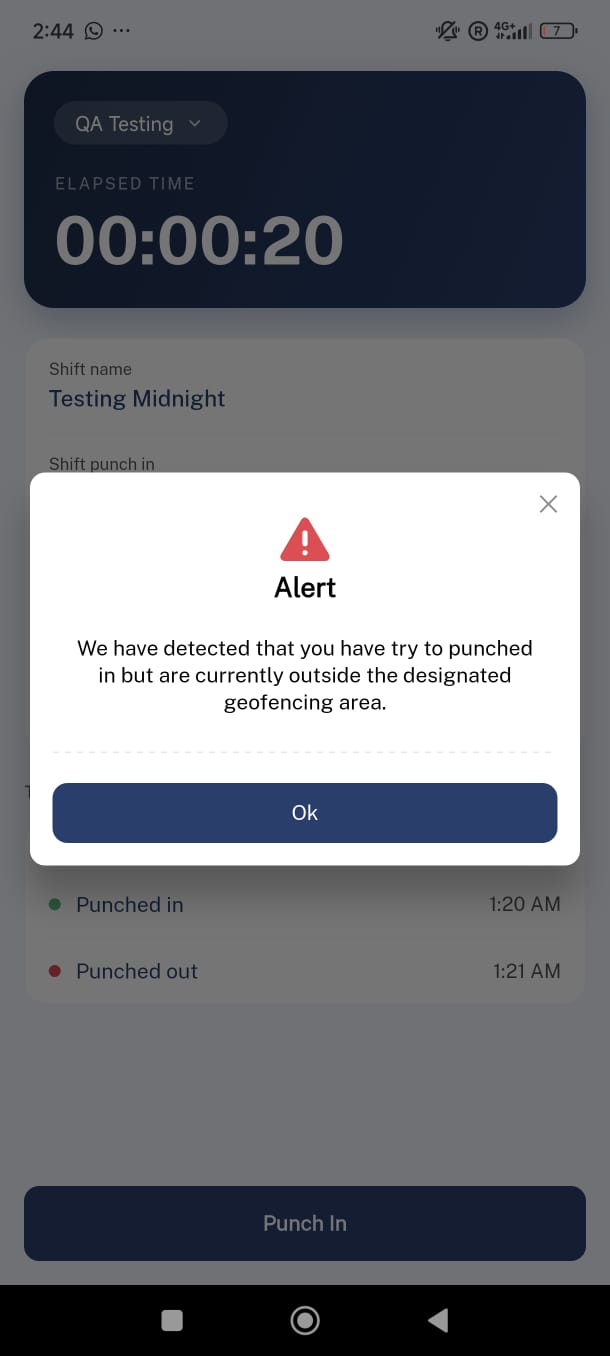
What happens
You leave the job site boundary
The app's background location service detects you are outside the geofenced area while your session is active.
You receive an out-of-range alert
A notification informs you that you are outside the project boundary.
- If you return to the job site within the allowed window, your session continues with no interruption.
- If you do not return in time, the system proceeds to punch you out.
Auto punch-out executes
The system punches you out after 5 minutes outside the boundary. Your timesheet is updated with the punch-out time.
Note: This only applies to projects that have a geofencing boundary configured. If your project has no location coordinates set, no geofencing checks run.
3 · Session Crossed Midnight
If you are still punched in when the clock reaches midnight, the app detects that the calendar date has changed and closes your session for that day.
What happens
Midnight is reached
The app detects that the current date no longer matches your original punch-in date.
You receive a day-end notification
A notification informs you that your session is about to be closed for the previous day.
- If there is no response within 10 minutes, the auto punch-out proceeds.
Auto punch-out at 23:59:59
Your session is closed at 23:59:59 of the original punch-in date. If you are still working, punch in again for the new day.
- A message confirms: "You were automatically punched out at midnight. Punch in again to continue working."
This works offline too. The midnight detection runs locally on your device — no internet connection is required.
Summary
| Scenario | Trigger | Warning given | Auto punch-out after |
|---|---|---|---|
| Shift end | Scheduled shift end time passes | Push notification | When no response to notification |
| Left geofenced area | Device exits job site boundary | Out-of-range alert | 5 minutes outside boundary |
| Midnight crossing | Clock crosses midnight | Day-end notification | 10 minutes after notification |
Things to Know
Auto punch-out times appear on your timesheet. If the system punched you out, the punch-out time recorded is the moment the auto punch-out executed — not the time you actually stopped working. Contact your supervisor if a correction is needed.
Lunch break pauses the shift-end check. If you are on a lunch break when your shift end time is reached, the system will not send the shift-end notification or auto punch-out until you resume work.
Auto punch-out applies while offline. All three scenarios work without an internet connection. Entries created by auto punch-out are queued locally and synced when the connection is restored. See → Offline Mode and Offline Selfie.