
Geolocation hierarchy
Overview
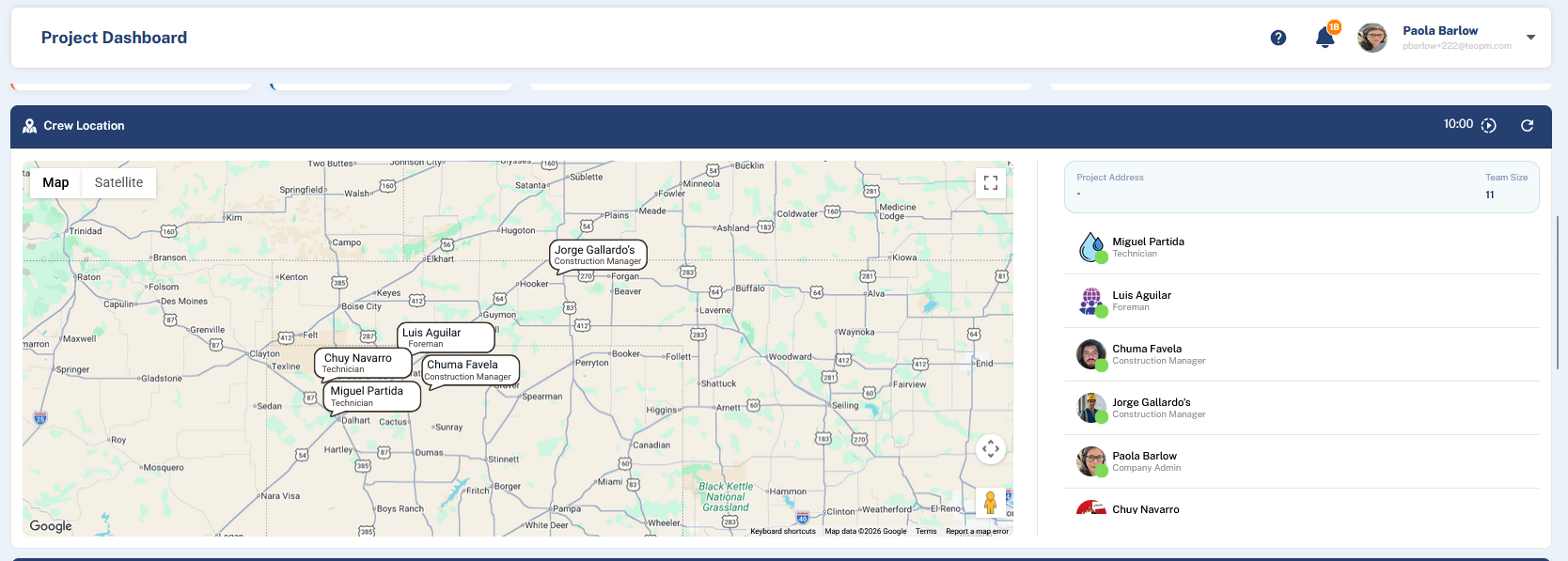
Geo-CX shows a live map of all team members who are currently punched in. What you see on that map is not configured per person — it follows your place in the role hierarchy.
This page explains the visibility rule, who can see whom, and why some roles never appear on the map at all.
The Rule: Visibility Flows Downward
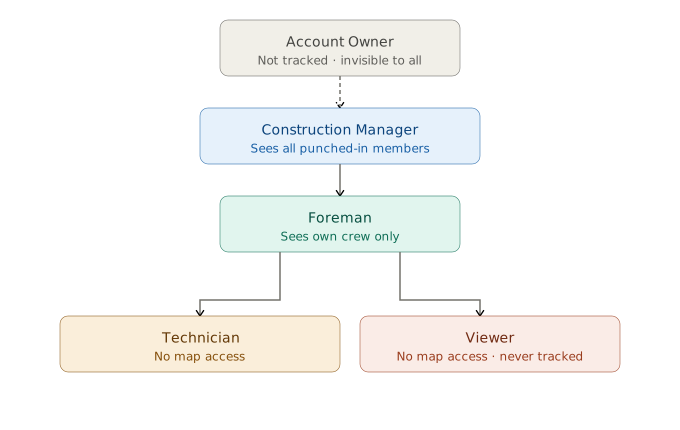
A team member only appears on the map while they are punched in. From there, visibility flows downward through the hierarchy — each role sees the people ranked below it, and never the people ranked above.
Visibility by Role
Who appears on each role's map
Read across a row to see exactly who that role can spot on the map.
| ON THE MAP OF ↓ · CAN SEE → |
ACCOUNT OWNER
|
CONSTRUCTION MANAGER
|
FOREMAN
|
TECHNICIAN
|
VIEWER
|
|---|---|---|---|---|---|
| Account Owner's map | |||||
| Construction Manager's map | — | ||||
| Foreman's map | — | — | |||
| Technician's map | — | — | — | ||
| Viewer's map |
Why the Account Owner Is Not Tracked
The Account Owner is excluded from map tracking by design. As the person responsible for the organization's account, their location is not part of the operational picture — regardless of whether they are punched in.
Custom Roles and Map Visibility
Map visibility follows the base role that a custom role is built on, not the custom role's name or specific permission set. A custom role built on the Foreman base will always have crew-level map visibility, even if other permissions within that role have been customized.
Note: Map visibility requires the Track Employees on Map permission to be active on the dashboard. If a user has the correct role but cannot see the map widget, check that this permission is enabled on their role.
Tip: If a team member is punched in but not appearing on the map, verify that location permissions are enabled on their mobile device. Geo-CX requires location access to display a pin on the map.