
Offline Mode and Offline Selfie
Overview
Geo-CX is designed to work without an internet connection. If you lose signal on the job site, you can still punch in, punch out, take a lunch break, and log injury reports. Everything is saved locally on your device and synced to the system automatically once your connection is restored.
This article explains what works offline, how the offline selfie requirement works, and how your data syncs when you reconnect.
What Works Offline
| Feature | Available offline | Notes |
|---|---|---|
| Punch In | ✅ Yes | Offline selfie required instead of system verification |
| Punch Out | ✅ Yes | Entry queued locally until sync |
| Lunch Break | ✅ Yes | Start and resume both work offline |
| Resume Work | ✅ Yes | Geofencing check still runs using device GPS |
| Timer | ✅ Yes | Runs locally — persists even if the app is closed |
| Geofencing | ✅ Yes | Uses device GPS, no system call needed |
| Shift-end notification | ✅ Yes | Local notification sent at scheduled shift end |
| Injury report at punch out | ✅ Yes | Photos stored locally and queued for sync |
| Safety forms | ✅ Yes | Filled offline, synced when connection returns |
| Today's Log | ✅ Yes | Built entirely from local data |
The Offline Selfie
When you punch in without an internet connection, the app requires a selfie before your session begins. It only appears when you are offline.
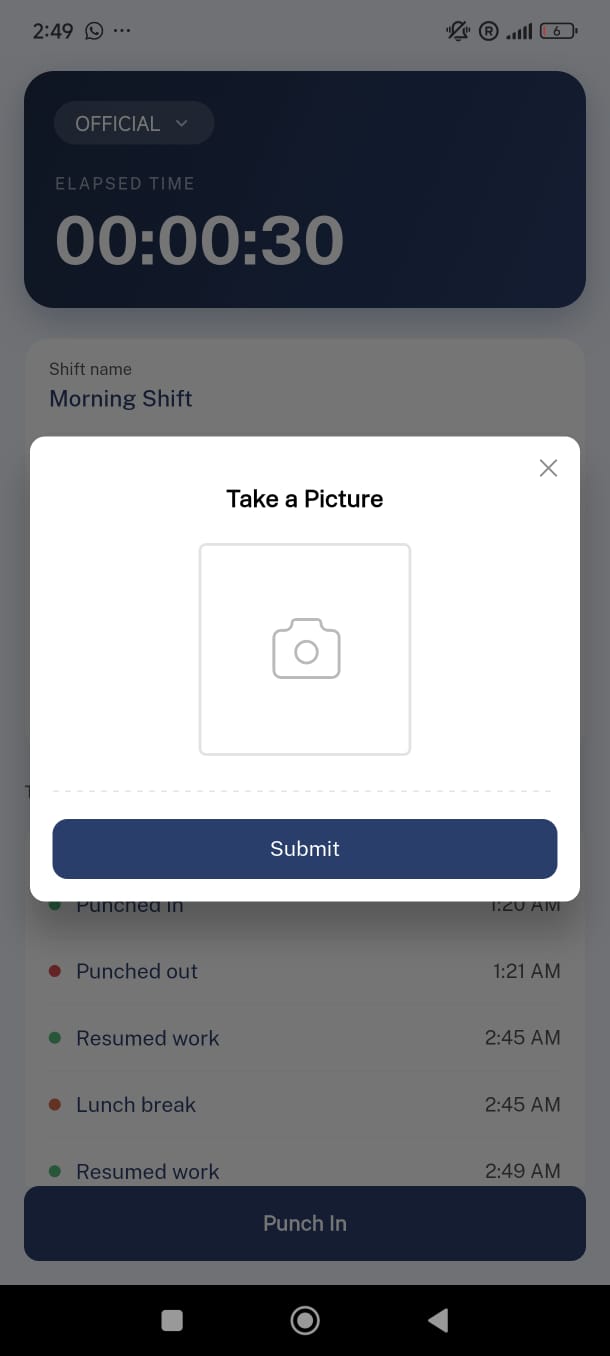
Tap Punch In while offline
After passing the geofencing check and filling in your activity details, the camera opens automatically.
- This step does not appear when you are online — it is only triggered by the offline state.
Take the selfie
Point the camera at yourself and capture the photo. The image is saved to your device.
Punch in completes
The timer starts normally. The selfie is stored locally and uploaded automatically the next time your device connects.
How Data Syncs When You Reconnect
Your device monitors connectivity in the background. The moment a connection is detected, sync begins automatically — you do not need to do anything.
Connection is detected
The app detects the restored network and triggers a sync immediately.
Pending entries are uploaded
All punch in and punch out entries saved while offline are sent to the system.
- This includes any offline selfies, injury photos, and safety form submissions.
- Multiple days of offline entries can sync at once if you were offline for an extended period.
Entries confirmed
Once the upload succeeds, entries are marked as synced. Your timesheet reflects the correct hours.
Things to Know
Nothing is lost offline. Every punch in, punch out, lunch break, and injury report is saved locally the moment it happens. A lost connection does not mean lost data.
Sync is fully automatic. You never need to manually trigger a sync — the app handles it as soon as a connection is available.
The selfie only appears when offline. If you are online when you punch in, no selfie is requested. The selfie is an accountability measure for when server-side verification is not possible.
Background sync continues while the app is minimized. You do not need to keep the app open for entries to sync. The background service handles uploads even when Geo-CX is not on screen.