
Understanding base roles
What Is a Base Role?
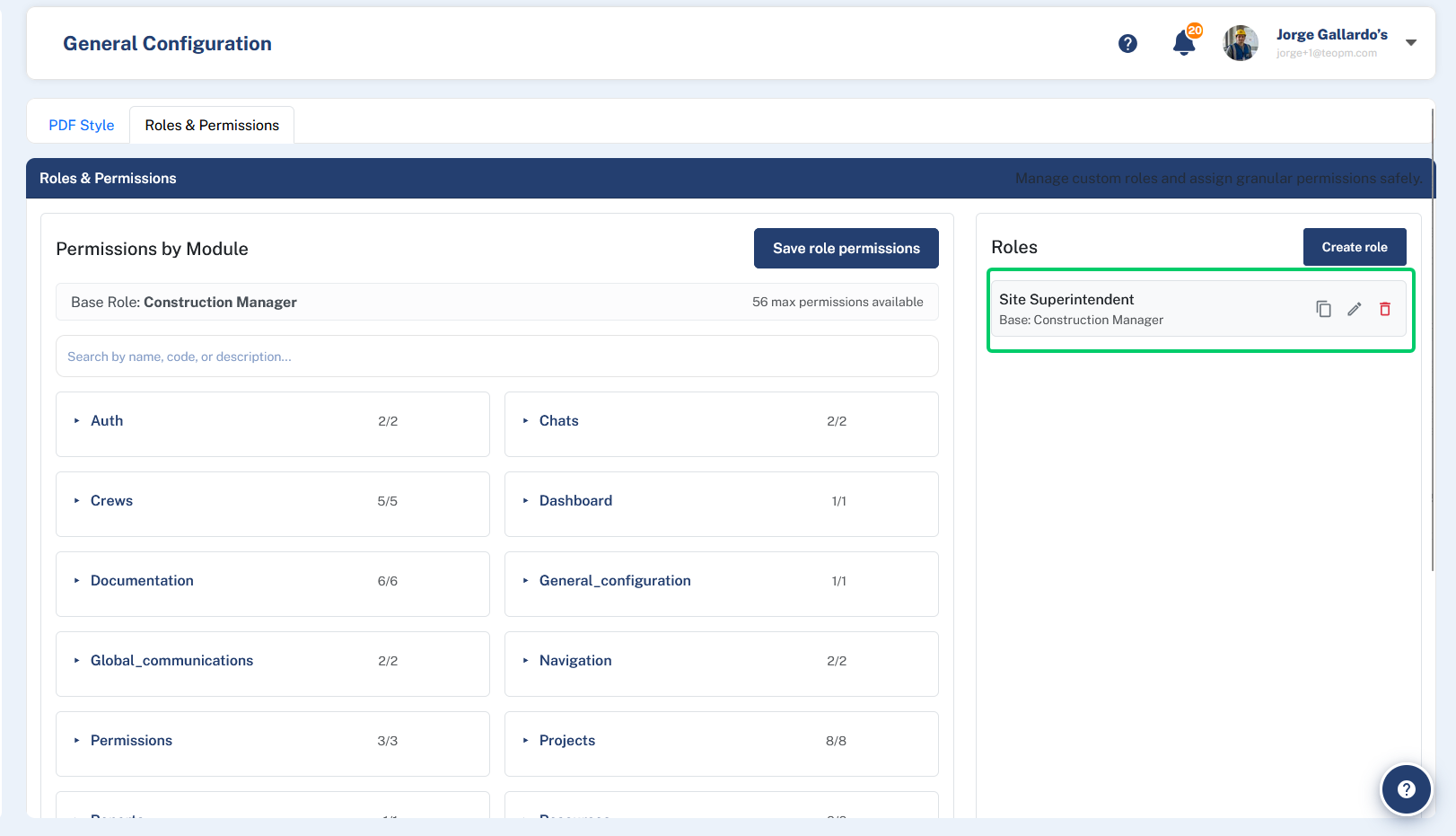
When you create custom roles in Geo-CX, every role must be built on top of a base role.
A base role defines the maximum set of permissions that any role built on it can ever have. Think of it as a ceiling — your custom role can have fewer permissions than the base role allows, but it can never have more.
This ensures that access levels stay consistent and appropriate across your organization, no matter how many custom roles you create.
Why Base Roles Matter
Base roles give your organization a clear structure for managing access:
- They set boundaries. A custom role can only include permissions that its base role allows. This prevents accidental over-permission.
- They reflect job functions. Each base role is designed around a type of user in the field or office, so your custom roles stay grounded in real responsibilities.
- They simplify role management. Instead of building permissions from scratch every time, you start from a well-defined foundation.
Available Base Roles
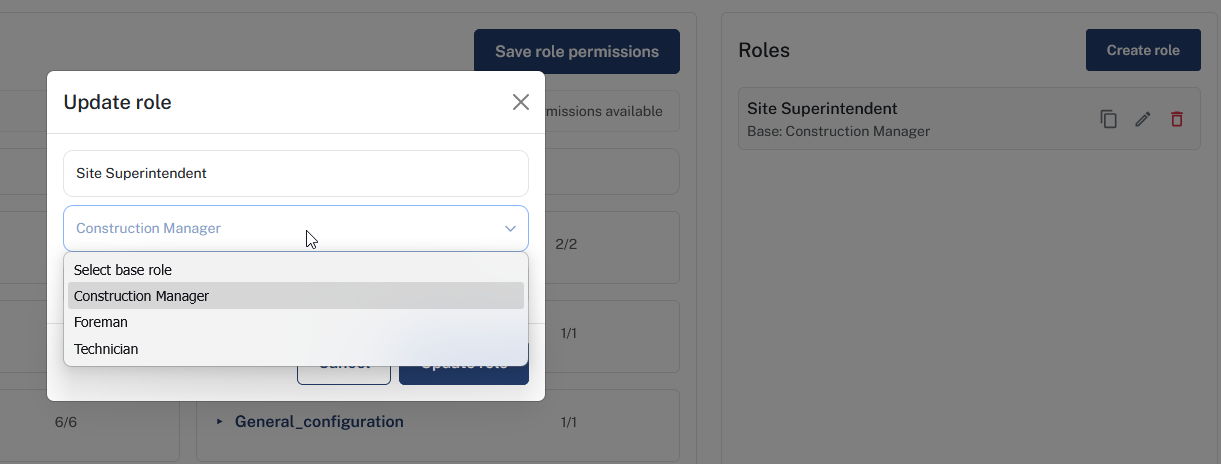
Geo-CX provides the following base roles for you to build on:
| Base Role | Typical Use |
|---|---|
| Construction Manager | Full-access administrative users who manage projects, crews, timesheets, and configurations |
| Foreman | Supervisory users who manage their crew, validate timesheets, and oversee field activity |
| Technician | Field users who submit forms, log time, and report from the job site |
| Viewer | Read-only users who need visibility into safety records and documents without making changes |
Note: Base roles are provided by the platform and cannot be created, renamed, or deleted by your organization.
How Base Roles Work With Custom Roles
When you create a custom role, you select a base role as its parent. The permissions available to your custom role are limited to what that base role allows.
For example:
- A custom role built on Technician can only include permissions a Technician is allowed to have.
- A custom role built on Construction Manager has access to the widest set of available permissions.
If you need to give a custom role more permissions than its current base role allows, you would need to change the base role to one with a higher permission ceiling.
Choosing the Right Base Role
When creating a new role, choose the base role that most closely matches what that user type needs to do. Start broad if you are unsure — you can always restrict permissions within the role. What you cannot do is grant permissions beyond what the base role permits.
A good rule of thumb:
- Office or admin users → Construction Manager base
- On-site supervisors → Foreman base
- Field crew members → Technician base
- Stakeholders or read-only observers → Viewer base
Tip: If you are unsure which base role to use for a new custom role, start with the one that matches the most similar job function. You can always adjust the specific permissions within that role afterward.