
Shift Management
Overview
The Shift module is where field workers track their working hours in real time. From here you can punch in when you start work, take a lunch break, punch out at the end of your shift, and review everything that happened during the day.
How to Access the Shift Screen
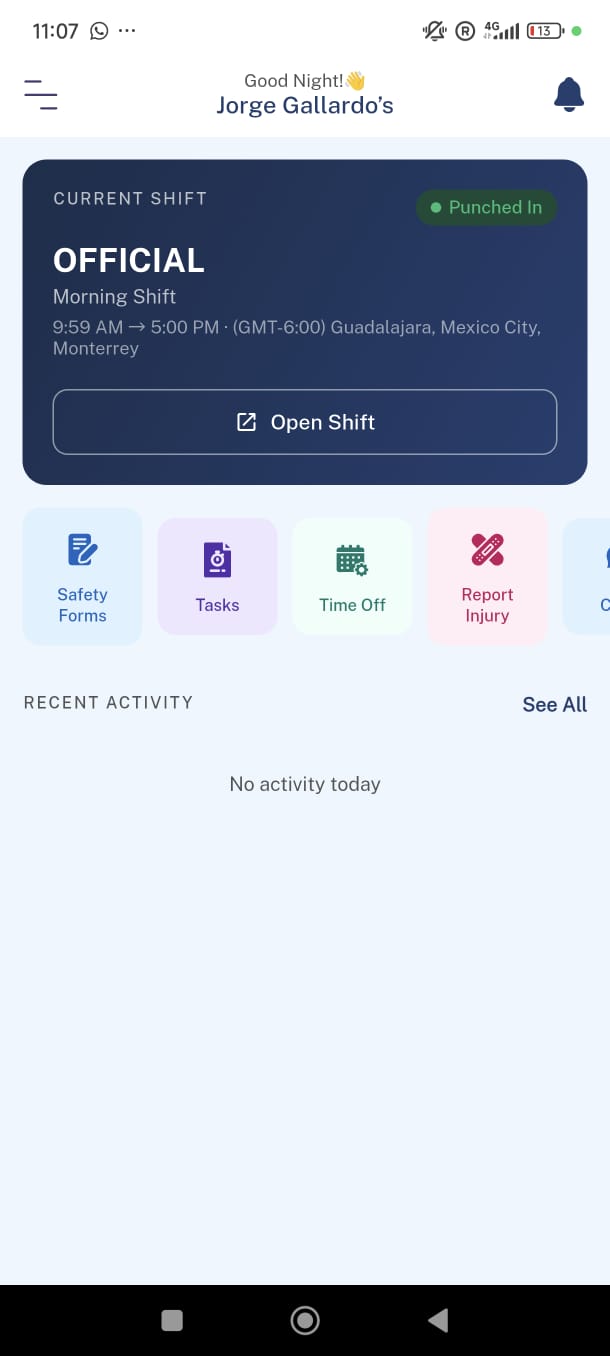
From the Dashboard, tap the Open Shift button inside the Current Shift card. This takes you to the full Shift screen where you manage your active session.
Note: You must be assigned to a project before you can punch in. If no project is shown in the Current Shift card, contact your supervisor.
What You See on the Shift Screen
Once you tap Open Shift, you enter the main Shift screen. This is where all punch activity happens.
Hero Card (When Punched In)
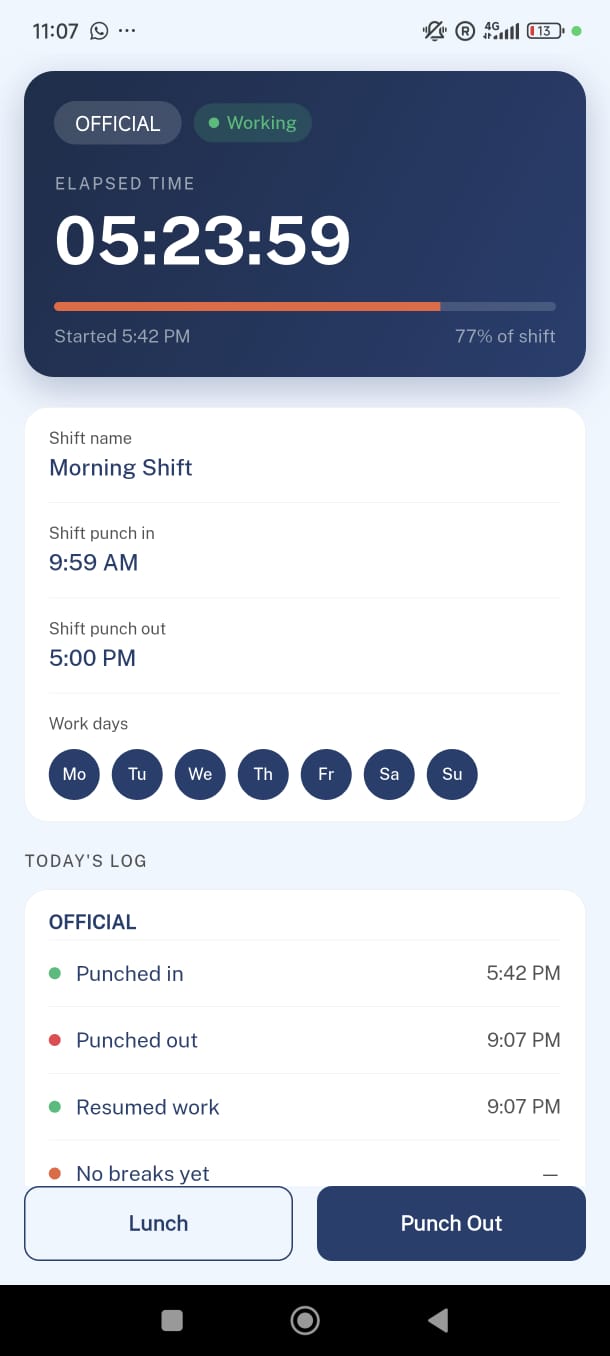
The large card at the top of the screen shows your active session at a glance:
| Element | What it shows |
|---|---|
| Project name | The project you are currently punched in to |
| Status badge | Working (green) or On Lunch (orange) |
| Elapsed time | Live timer — updates every second |
| Progress bar | How far through your shift you are (0–100%). |
| Shift percentage | For example: "84% of shift" or "+30m overtime" |
| Started at | The time you punched in |
Shift Details Card
Below the hero card, the Shift Details card shows your scheduled information:
- Shift name, scheduled punch-in time, and scheduled punch-out time
- Your work days displayed as a weekly grid (e.g., Mon–Fri highlighted, Sat–Sun inactive)
Today's Log
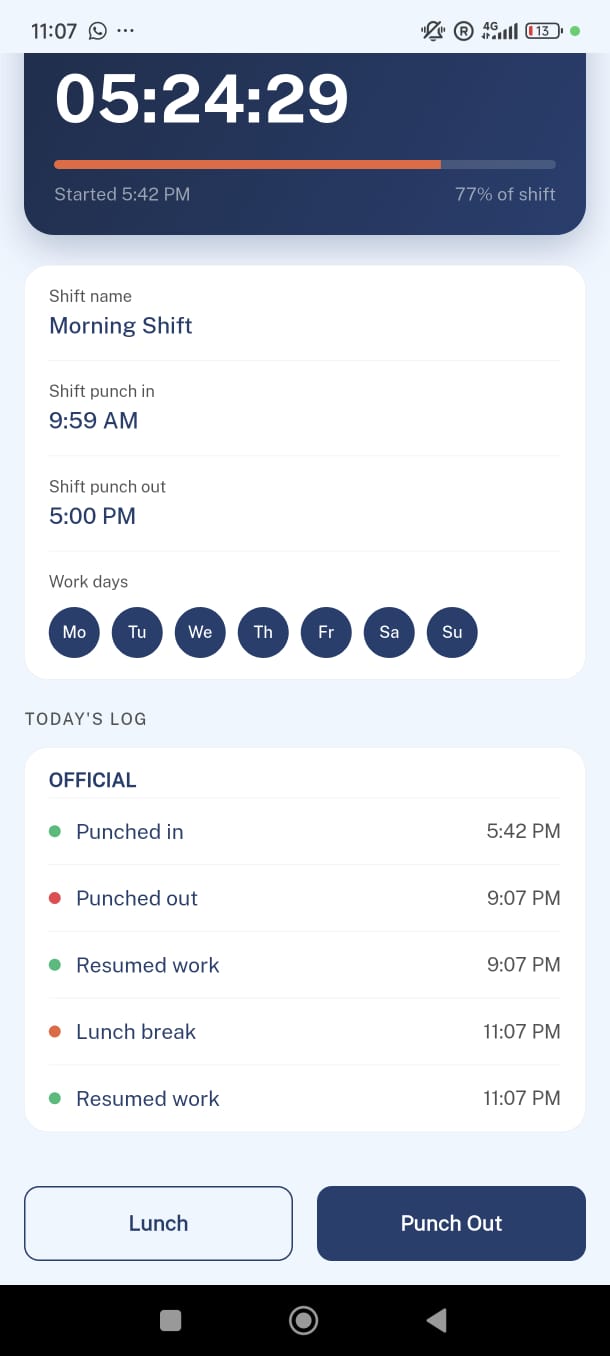
At the bottom of the screen, Today's Log shows a timestamped record of everything that happened during the current day:
| Entry type | Color | Label |
|---|---|---|
| Punched in | 🟢 Green | "Punched in" |
| Lunch started | 🟠 Orange | "Lunch break" |
| Resumed work | 🟢 Green | "Resumed work" |
| Punched out | 🔴 Red | "Punched out" |
| No break taken | 🟠 Orange | "No breaks yet" |
Available Actions
The buttons at the bottom of the Shift screen change depending on your current state:
| Your state | Buttons shown |
|---|---|
| Not punched in | Punch In |
| Punched in | Lunch · Punch Out |
| On lunch | Resume Work · Punch Out |
Each action has its own flow and requirements. See the dedicated articles for full step-by-step guidance:
- → How to Punch In and Punch Out
- → How to Take a Lunch Break and Resume Work
- → Offline Mode and Offline Selfie
- → Automatic Punch-Out: When and Why It Happens
Things to Know
Project selection is locked while punched in. You can only change your assigned project when you are not punched in. If you need to switch projects mid-day, punch out first.
All times are in project time. If your device is in a different timezone than the project, the times shown in the app will match the project's timezone — not your local time.
Your shift schedule comes from your project configuration. You cannot change your scheduled shift hours or work days from the app. Contact your supervisor if your schedule needs to be updated.