
How to Take a Lunch Break and Resume Work
Overview
While you are punched in, you can log a lunch break directly from the Shift screen. The timer pauses for the duration of your break and resumes automatically when you return to work. Lunch time is not counted as work time.
This article covers how to start a lunch break, what changes on screen while you are on break, and how to resume work.
For the full punch in and punch out flow, see → How to Punch In and Punch Out.
How to Start a Lunch Break
Tap Lunch
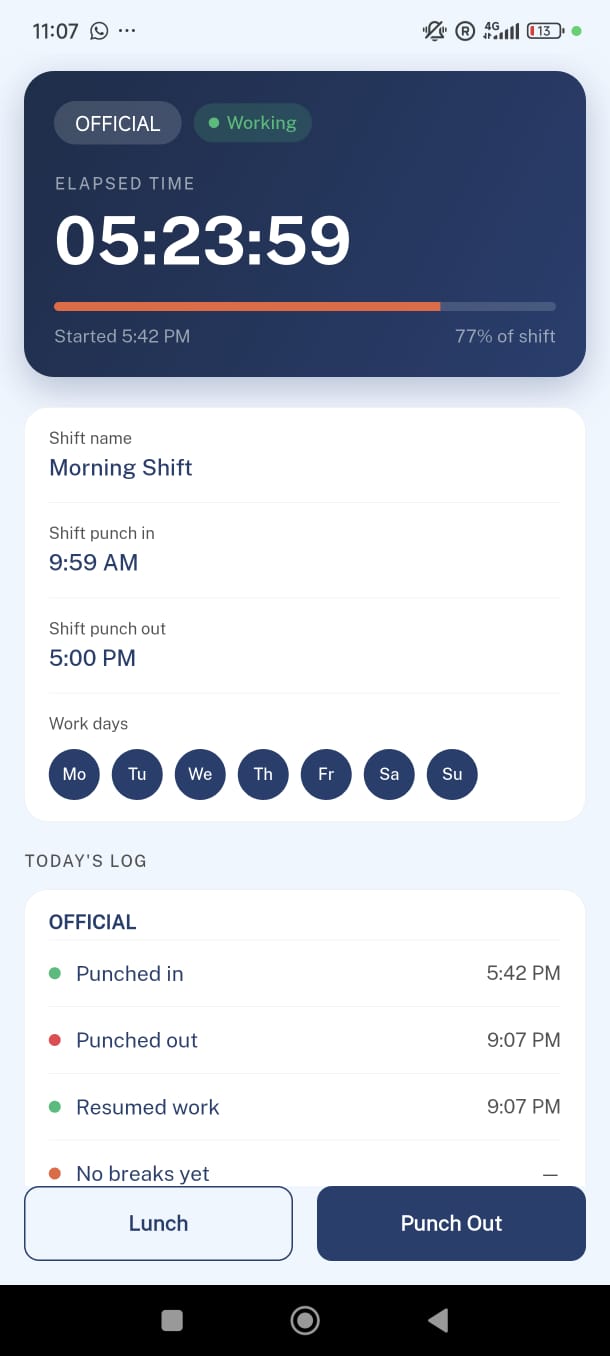
The Lunch button is visible at the bottom of the Shift screen while you are actively working.
- This button is not available before punching in or after punching out.
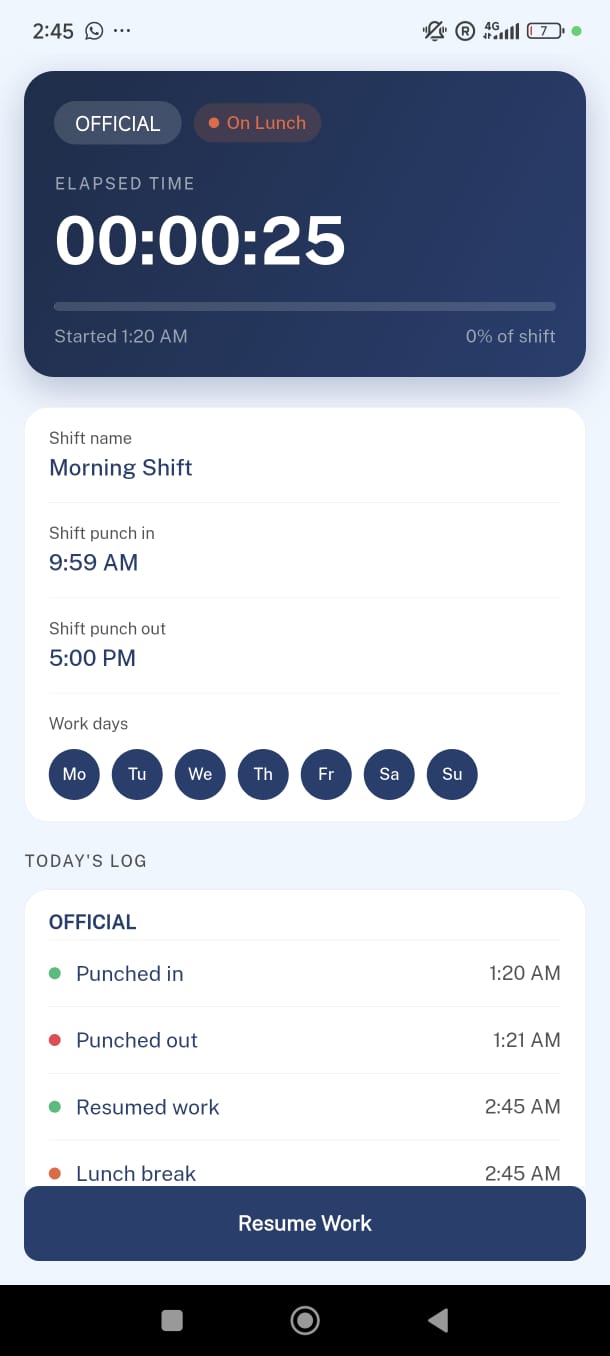
The timer pauses
The elapsed time counter freezes. No additional time is added to your session until you resume work.
- The status badge changes to On Lunch (orange).
- The Resume Work button appears at the bottom of the screen.
Your log updates
Today's Log records a Lunch break entry with the time you tapped Lunch.
What Changes While On Lunch
| Element | While Working | While On Lunch |
|---|---|---|
| Status badge | 🟢 Working | 🟠 On Lunch |
| Timer | Running — counts up every second | Frozen — no new time added |
| Bottom buttons | Lunch · Punch Out | Resume Work · Punch Out |
| Today's Log | Shows active punch-in entry | Shows a "Lunch break" orange entry |
How to Resume Work
Tap Resume Work
The button is at the bottom of the Shift screen while you are on a lunch break.
Geofencing check (if enabled)
If your project has geofencing enabled, the app verifies you are within the job site boundary before allowing you to resume.
- If you are outside the boundary, the action is blocked until you return to the site.
- No location check happens when you start your lunch — only when you resume.
Timer resumes
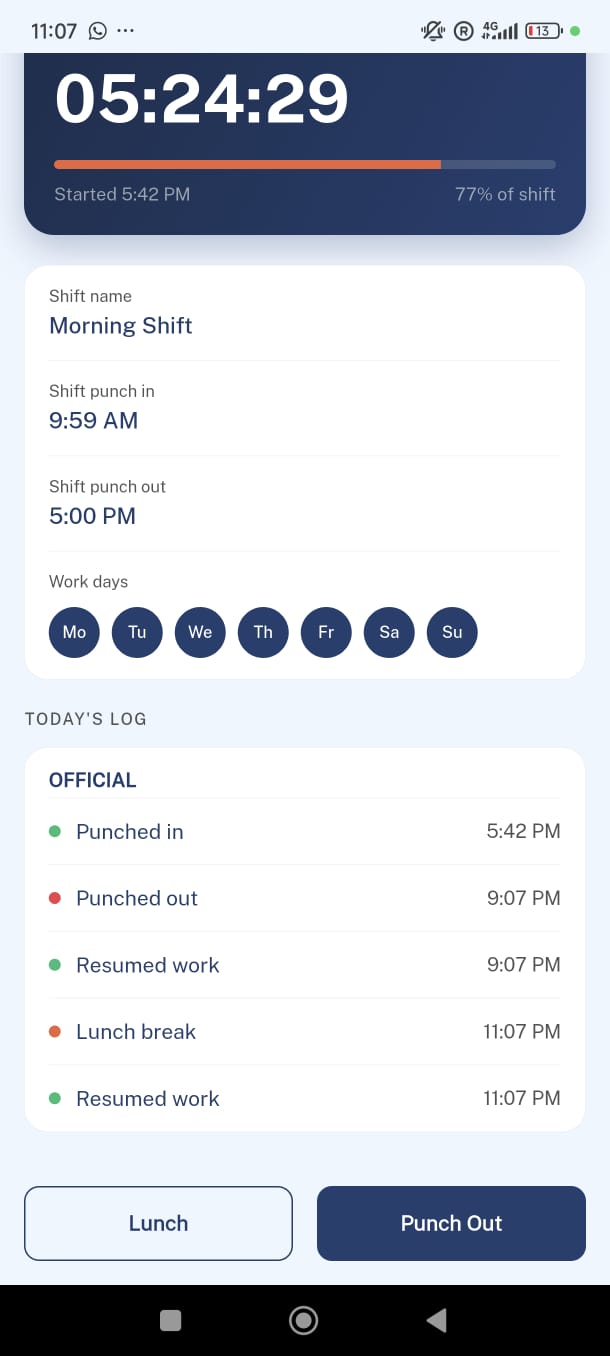
The elapsed time counter continues from where it paused. The status badge returns to Working (green) and Today's Log records a Resumed work entry.
Things to Know
Lunch time is not counted as work time. The timer is completely paused during your break. Your total hours for the day only include the time you were actively working.
You can still punch out while on lunch. If your shift ends while you are on break, you do not need to resume first — tap Punch Out directly from the On Lunch state.
Geofencing applies when resuming, not when starting lunch. You can step away from the job site for your break without any location check. The check only happens when you tap Resume Work.