
How to Punch In and Punch Out
Overview
Punching in starts your work session and begins tracking your time. Punching out ends it. Both actions are recorded in your timesheet and synced to the server.
This article covers the full punch in and punch out flow, including what happens when your project has geofencing enabled.
For an overview of the Shift screen and its elements, see → Shift Management.
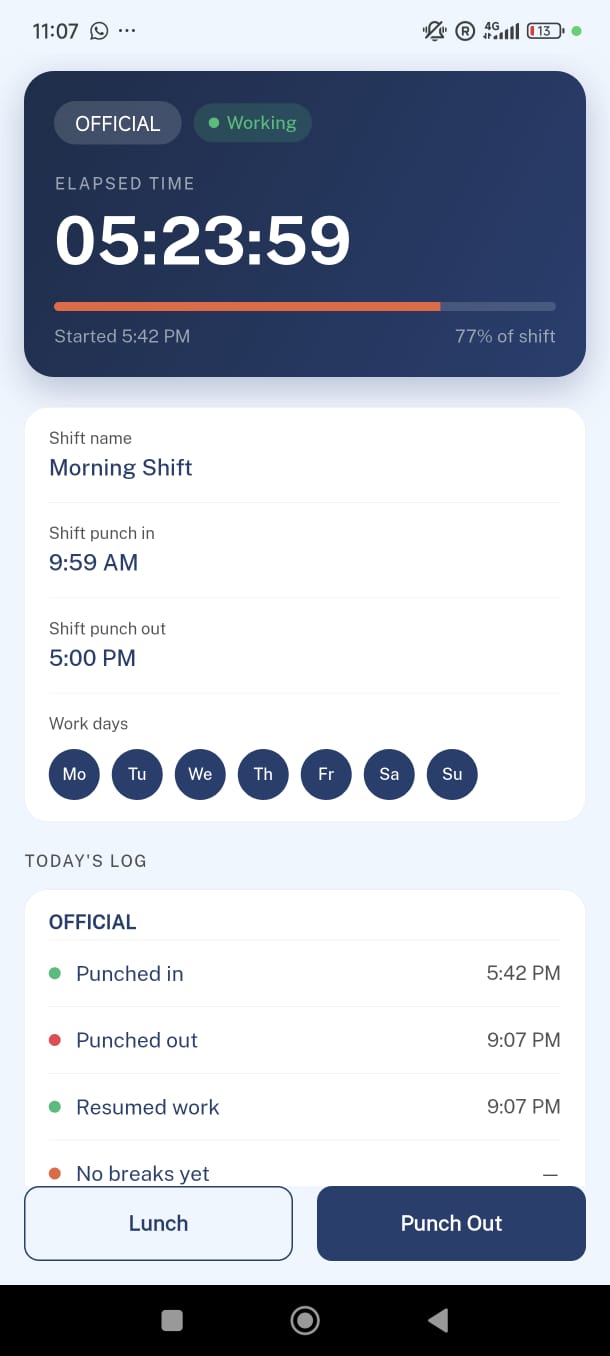
Before You Punch In
Two things must be in place before you can punch in:
- A project must be selected. Tap the project name on the Dashboard to choose your project. Once you are punched in, you cannot change it until you punch out.
- Location services must be on. The app requires GPS access. If location is disabled on your device, the app will prompt you to enable it in your settings before continuing.
How to Punch In
Open the Shift screen
From the Dashboard, tap Open Shift on the Current Shift card.
Tap Punch In
The button is at the bottom of the screen. The app verifies your location before continuing.
Pass the geofencing check
If your project has a geofencing boundary set, the app checks that you are within range.
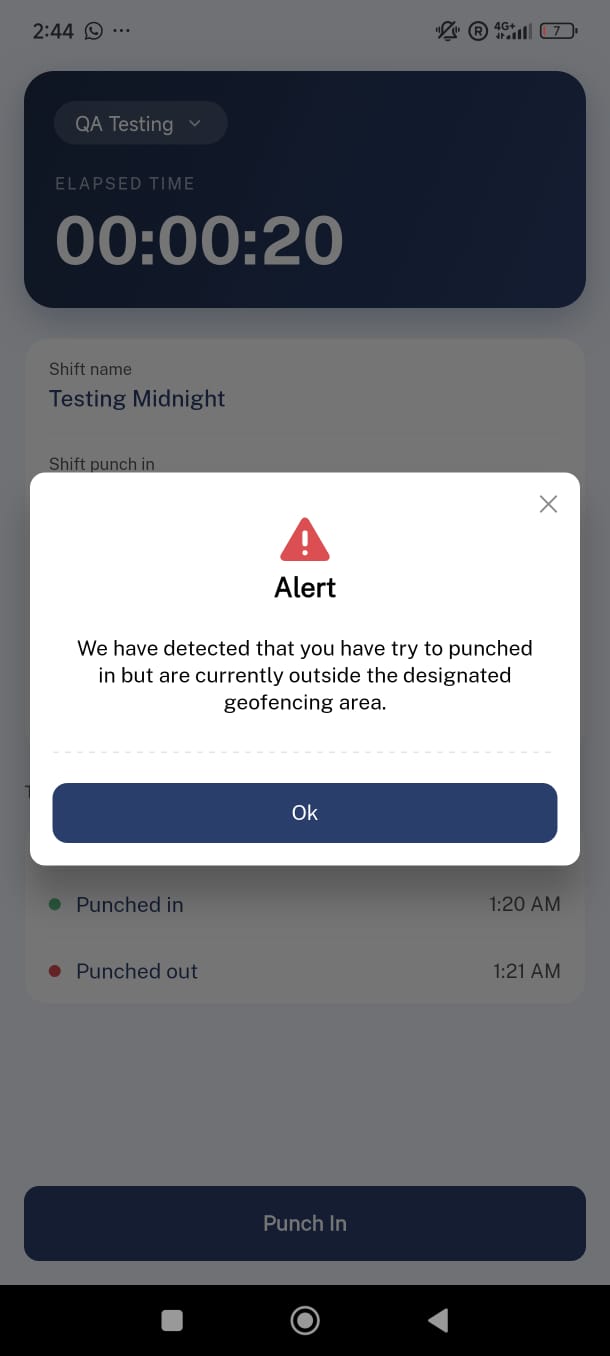
- If you are outside the boundary, punch in is blocked — move to the job site and try again.
- If the project has no location coordinates configured, this step is skipped entirely.
Fill in the activity details
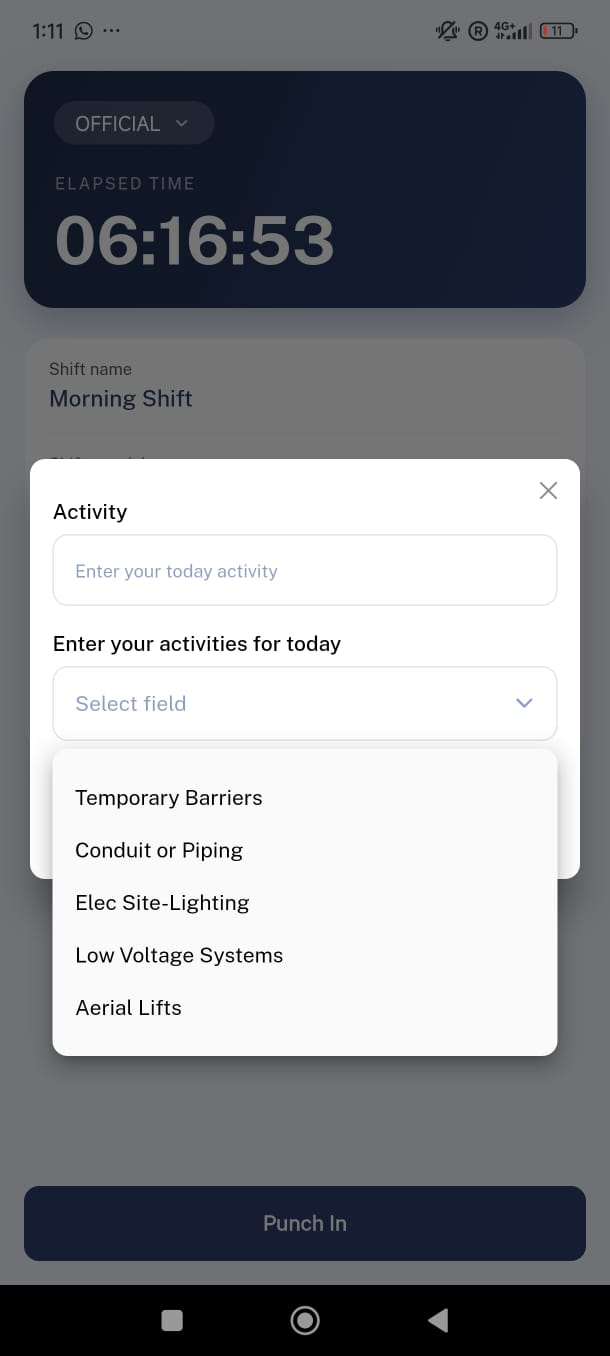
A popup appears asking for your punch-in notes.
- Notes are required — up to 400 characters.
- If your project has custom fields configured, you must select a value for each one before continuing.
You are punched in
The timer starts, the status badge turns green, and Today's Log records the entry.
- If your project requires safety forms, the app navigates you to those next.
Geofencing: What It Is and When It Applies
Geofencing is a location boundary set around a job site. When enabled, you must be physically within that boundary to punch in or resume work after lunch.
If you tap Punch In and you are outside the boundary, the app will show an alert and block the action. There is no override from the app — you need to be on site.
How to Punch Out
Tap Punch Out
The button is at the bottom of the Shift screen. It is available whether you are actively working or on a lunch break.
Answer the injury question
The app asks: "Were you injured during this shift?"
- Tap No to continue directly to punch out.
- Tap Yes to open the injury report form before finalizing.
You are punched out
The timer stops, your entry is saved, and the session is synced to the server. Today's Log shows a red "Punched out" entry with the timestamp.
Reporting an Injury at Punch Out
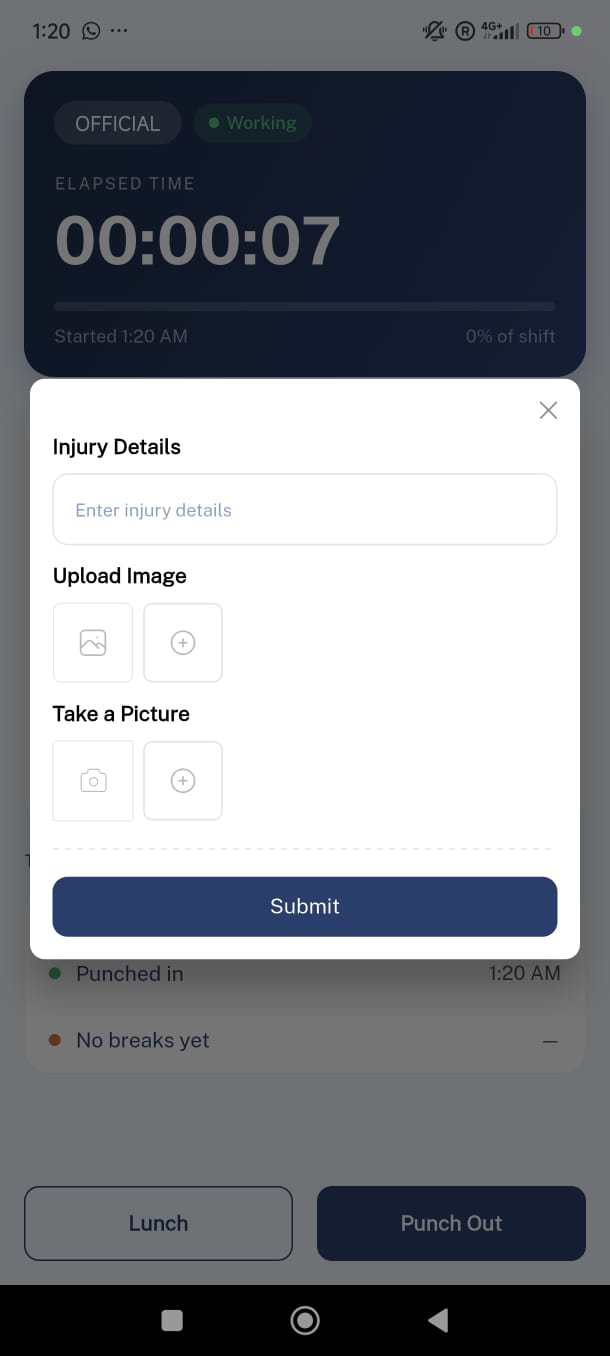
If you answer Yes to the injury question, an injury report form opens before the punch out is finalized.
Describe what happened
Enter a description of the injury in the text field.
- Description is required — up to 400 characters.
Attach photos
Upload from your gallery or take a photo with your camera.
- At least one photo is required.
- Maximum 5 photos total.
Submit
Tap Submit to complete the punch out with the injury report attached. The report is visible to your supervisor.
Note: You can also report an injury independently at any time using the Report Injury shortcut on the Dashboard — you do not need to wait until punch out.
Things to Know
Project selection locks on punch in. You cannot switch projects while punched in. Punch out first if you need to change projects.
All times are recorded in project time. Your punch in and punch out times are saved in the project's timezone, not your device's local time.
Working offline? Punch in and punch out both work without an internet connection. Your entries are saved locally and synced automatically when your connection is restored. See → Offline Mode and Offline Selfie for details.